

Cinema Theater Tycoon
Modding Tools
Create your own items, films and character skins, and bring your cinema to life with community-made content.
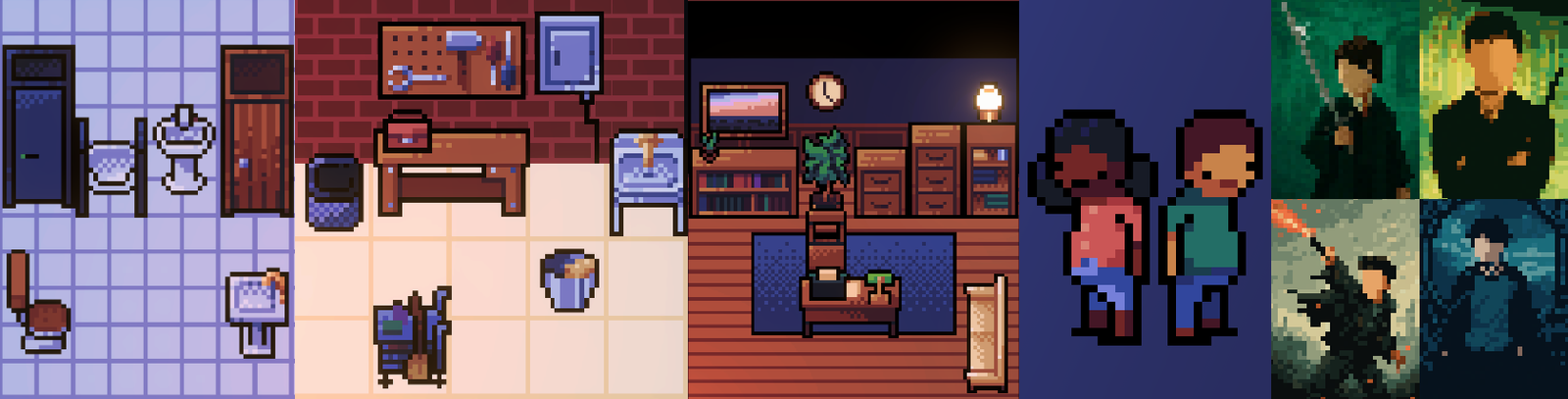
Create decorative objects, character skins and films for Cinema Theater Tycoon using the Mod Creator built into the game. Prepare your images in your preferred image editor, then import and configure everything through the in-game interface. No programming or Unity installation is required.
Modding is available in all PC editions of the game on Windows, macOS and Linux. The Steam edition also includes direct Steam Workshop integration for downloading, publishing and updating mods.
features
What You Can Create
Decorative Objects
Films
Character Skins
Getting Started
Open the Mod Creator
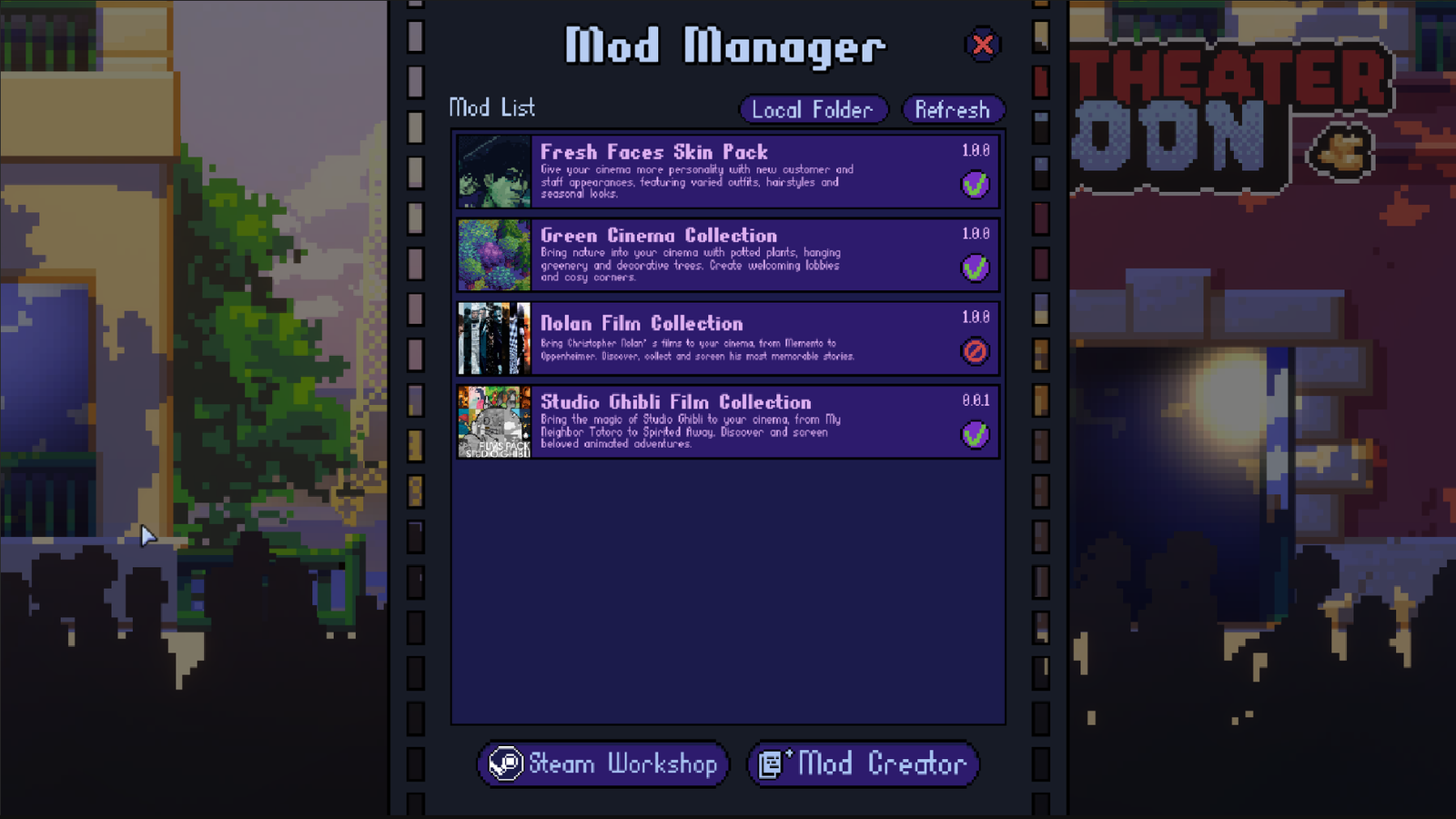
From the main menu, open the Mods menu, then enter the Mod Creator. The creator is operated with a mouse and keyboard; controller navigation is not supported in this menu.
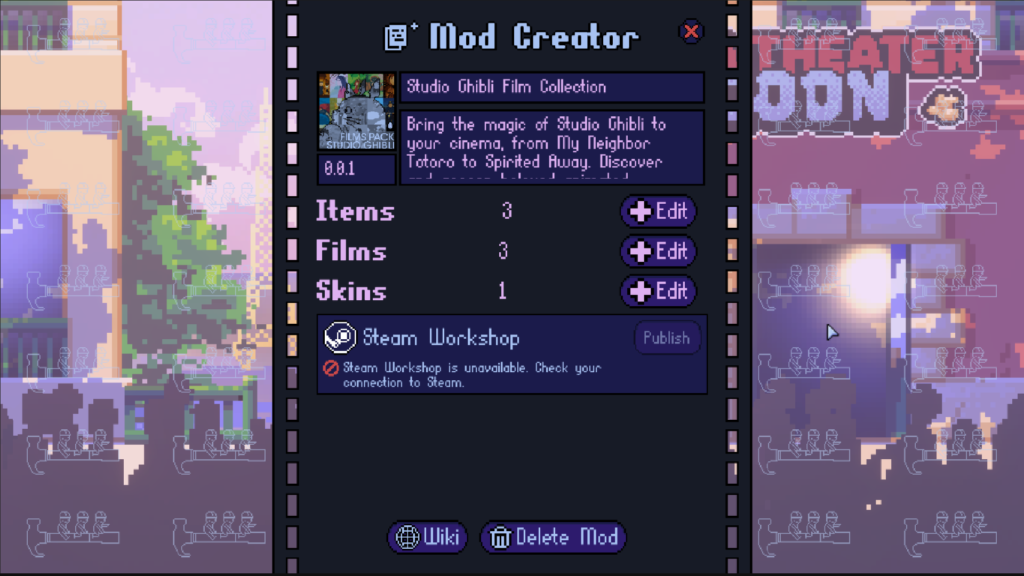
Create a new mod and enter its name, description and version. A mod can contain objects, skins and films together, or focus on just one category. Open the category you want to work on and add your first element.
Mod Information and Version
Use the name and description to explain what your mod contains. The version belongs to your mod, rather than to the game. Enter three numbers separated by periods, such as
1.0.0,1.0.1or1.1.0. Increase this version when you release an update so players can identify changes.The mod’s name, description, version and illustration are saved when you leave its information screen. Publishing or updating through Steam also saves this information after confirmation.
To publish a mod on Steam, provide a mod name, at least one saved element and a valid mod illustration. Elements containing errors do not prevent publication, but those elements will not load in the game. Save and validate your intended content before sharing it.
Names, descriptions and other custom text remain in the language in which you write them. Changing the game’s interface language does not automatically translate your content. Choose a language appropriate for your intended players and mention it in the mod description when useful.
Save Each Element
Use the Save button in the object, skin or film editor to save that element. Importing an image or changing a field does not replace this step.
If you switch to another element or leave an editor with unsaved changes, a confirmation asks whether you want to discard them. Cancel to return to your work, or confirm to continue without saving those changes. The close button and Escape follow the same navigation path.
You may save an unfinished element and return to it later. However, saving does not mean the element is ready to appear in the game: it must also pass validation.
Understand Errors and Warnings
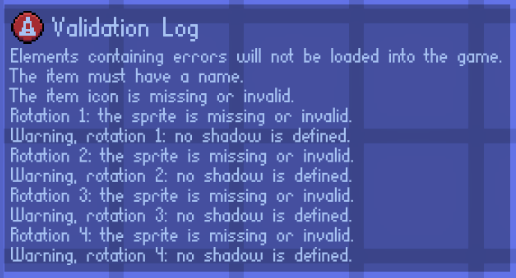
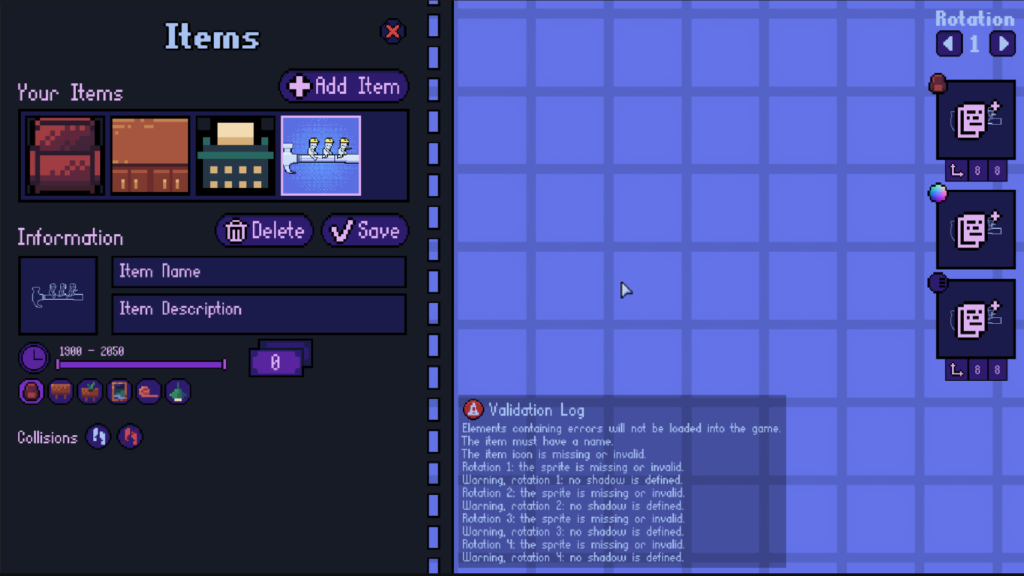
The validation panel explains issues with the selected element. Markers on the element thumbnails help you locate other entries that need attention. If nothing is selected, the editor can display a general notice that saved elements contain errors.
Errors prevent the affected element from loading in the game. Other valid elements in the same mod can still load. Correct the issue, save the element and reload your game from the main menu.
Warnings draw attention to something worth checking without preventing the element from loading. Examples include an omitted shadow on an object type that supports shadows, normal maps supplied for only some rotations, or collision areas enabled for only some rotations.
Importing Images
Choose an Image
Left-click an empty image slot to select a PNG, JPG or JPEG file. PNG is recommended, particularly for sprites and images that need transparent backgrounds.
To remove an assigned image, hover over its slot and left-click it. The cursor changes to indicate the removal action. You can then click the empty slot to import a replacement.
On Windows, you can also hover over the target image slot and press Ctrl+V to paste an image from the clipboard. Keep the pointer over the slot you want to fill. Clipboard image pasting is currently available only on Windows; use the file selector on macOS and Linux.
If an image is rejected, the editor displays an error and plays an error sound. Check the message for the reason: unsupported format, unreadable image, incorrect dimensions, excessive file size or incompatible clipboard content.
Image Requirements
| Image | Required dimensions | File size |
|---|---|---|
| Mod illustration | Exactly 1000 × 1000 pixels | Under 1 MB |
| Film poster | Exactly 32 × 48 pixels | Under 2 MB |
| Character avatar | Exactly 16 × 16 pixels | Under 2 MB |
| Character spritesheet | Exactly 112 × 64 pixels | Under 2 MB |
| Object catalogue icon | No fixed dimensions | Under 2 MB |
| Object rotation sprite | No fixed dimensions | Under 2 MB |
| Object normal map | Exactly the dimensions of its corresponding rotation sprite | Under 2 MB |
| Object shadow | May have different dimensions from its rotation sprite | Under 2 MB |
File-size limits are strict: an image must be smaller than the stated limit. Images with fixed dimensions must match both width and height exactly.
Creating Decorative Objects
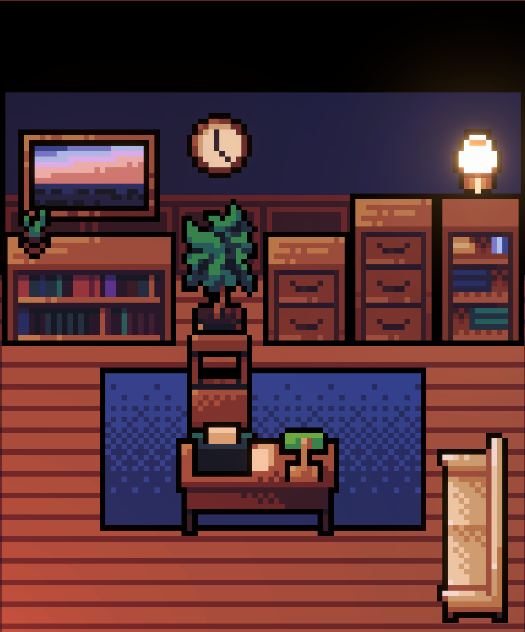
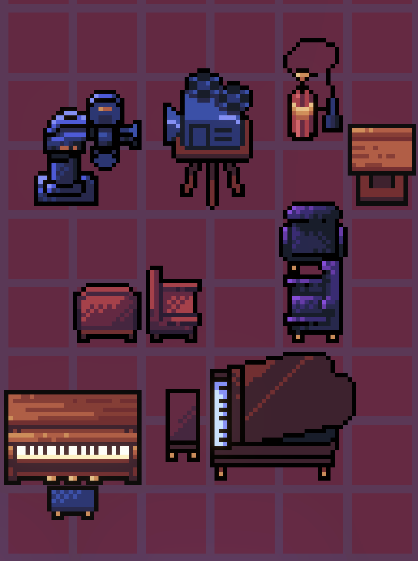
Items are decorative objects you can place in the cinema: plants, posters, tables, floor tiles, lamps, wall objects and more. Each item needs basic information, sprites for each rotation, collision settings, and an object type.


4.1 Add an Object
Create or open your mod, enter the Objects category and add an object. Give it a name, import its catalogue icon and choose its object type. Then configure the four rotations, placement areas and any additional options required by that type.
Save the object when you are ready to keep your changes. Check its validation messages before testing it in a cinema.
4.2 Basic Information
| Setting | Purpose |
|---|---|
| Name | The object’s name in the game. Required. |
| Description | Additional information about the object. Optional. |
| Price | The construction price. Enter a whole number greater than or equal to zero. |
| Catalogue icon | The image used to represent the object in the construction catalogue. Required. |
| Availability years | The in-game years during which the object is available. The default range is 1900–2050. |
The availability range must stay between 1900 and 2050, and its starting year cannot be later than its ending year.
4.3 Choose the Object Type
| Type | Placement and purpose |
|---|---|
| Floor object | A standard object placed in free floor space, such as a plant or freestanding decoration. |
| Table | A surface with configured positions on which table objects can be placed. |
| Table object | A decorative object placed on a table, such as a small ornament. |
| Wall object | A decoration attached to a wall, such as a picture or wall lamp. |
| Carpet | A floor decoration displayed beneath ordinary floor objects. |
| Ceiling object | A decoration placed at ceiling level. |
Choose the type before adjusting placement areas: these areas have different purposes depending on the selected type.
4.4 Sprites and Rotations
Each object requires a sprite for all four orientations, in this order:
- Front.
- Right.
- Back.
- Left.
Use the rotation arrows to move between them. Import the sprite and adjust its settings for each orientation separately. Wall objects follow the same rotation order.
All four sprite slots must be filled, even when some orientations use identical artwork. You can use the same image in multiple slots where appropriate.
The game’s grid uses a 16 × 16 pixel base per cell. Your object sprites may be larger than 16 × 16 pixels; they are not restricted to a single cell. Keep the game’s base pixel scale in mind when drawing larger objects.
4.5 Sprite Offsets and Alignment
The X and Y fields define the sprite’s anchor point in pixels, measured from the bottom-left corner of the image. X increases to the right and Y increases upward.
These values control how the image aligns with its position on the game grid. Adjust them while watching the preview, and repeat the process for every rotation.
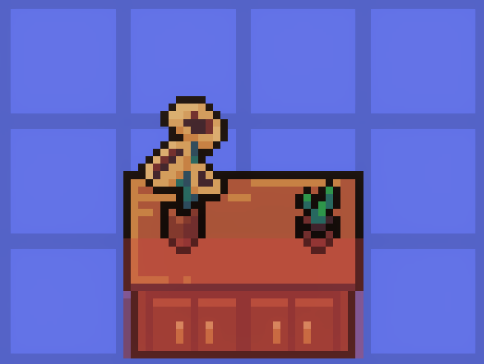
For a wall object, the preview displays an example wall. For a table object, it displays an example table. Use these references to align the artwork correctly. Table objects use their sprite offsets to adjust how they sit on the table.
4.6 Placement Areas and Collisions
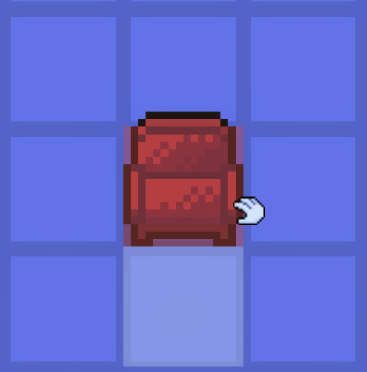
Objects can have a walkable area and a non-walkable area for each rotation. Their exact role depends on the object type.
For ordinary floor objects and tables:
- Non-walkable area: occupies space and blocks character movement.
- Walkable area: reserves space against construction while allowing characters to walk through it. Use it to keep access routes clear around an object.
These areas use grid cells. Sprite offsets and table-object positions use pixels. A placement rectangle therefore follows the construction grid rather than the individual pixels of the artwork.
Enable the area you want to configure, then adjust it directly in the preview:
- Drag its centre to move the entire rectangle.
- Drag an edge to change its width or height.
- Drag a corner to resize it in both directions.
Movement and resizing snap to the grid. Configure each rotation separately and check that the areas remain aligned when the object turns. The preview updates immediately as you make changes.
Wall Objects
Wall objects use the two areas for wall placement checks:
- The non-walkable area represents the space occupied by the object on the wall.
- The walkable area should cover the space one cell in front of the wall. It checks that another wall does not obstruct the placement, helping prevent objects from being placed inside walls.
For this type, configure the areas around the object’s attachment to the wall and its clearance in front of it, rather than treating it like a freestanding obstacle on the floor.
Ceiling Objects and Carpets
For ceiling objects, the non-walkable area reserves the relevant ceiling positions against other ceiling objects. It does not act as an ordinary obstacle for characters walking underneath.
For carpets and other objects using the carpet type, it reserves the relevant floor-decoration positions against other objects of that type. Carpets are displayed beneath ordinary floor objects.
Table Objects
Table objects do not have their own collision areas. Their placement uses the receiving table’s object positions. Adjust the table object’s sprite offsets against the example table in the preview to refine its appearance.
4.7 Object Positions on Tables
A table must have at least one object position. These positions define where decorative table objects can sit.
Add the positions in the table editor and set their X and Y coordinates in pixels for each rotation. Check them in the preview, where example objects show how the positions align with the table surface.
Set positions for all four orientations so that placed decorations stay correctly aligned when the table rotates. You can remove positions you no longer need. A table with no positions produces a validation error and will not load in the game.

4.8 Shadows
Shadows are available for floor objects, tables and carpets. They are not used by wall objects, ceiling objects or table objects; the shadow image slot and its coordinate controls are hidden for those types.
For a type that supports shadows, import a shadow image for each rotation where you want one and adjust its X and Y anchor coordinates in pixels. A shadow image may have different dimensions from the main sprite.
Draw the shadow itself using the exact colour
#171b26to match the game’s other objects. Do not create the shadow by making its painted pixels semi-transparent. Keep the background outside the shadow shape transparent.A missing shadow on a type that supports it produces a warning. It does not prevent the object from loading. An assigned shadow image that is invalid must be corrected or removed.
4.9 Normal Maps
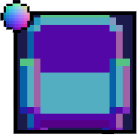
A normal map is an optional image that affects how an object’s sprite responds to lighting. Import the main sprite first, then assign its normal map.
Each normal map must have exactly the same width and height as the main sprite for that rotation. A different size is rejected. If only some rotations have normal maps, the editor displays a warning so you can check whether that is intentional.
Normal maps are not displayed in the Mod Creator preview. Save your object and test it in the game to check the lighting and make any necessary adjustments.
4.10 Test Your Object
Save the object, resolve any validation errors and make sure its mod is enabled. Close the Mods menu and load or reload your cinema from the main menu.
Find the object in the construction catalogue during its availability years. Check all rotations, alignment, occupied areas and access routes. For tables, also test a table object in the configured positions. For wall objects, check placement against walls and clearance in front of them. Test normal maps under the game’s lighting.
Creating Character Skins
Skins define how your NPCs look in-game: customers, employees, managers and special event characters. You’ll work from a reference template file and add your own colors and details.
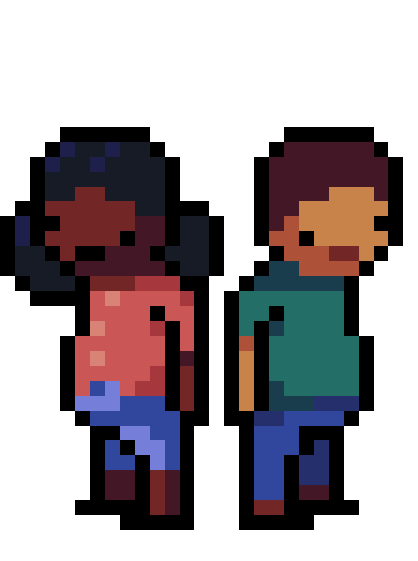
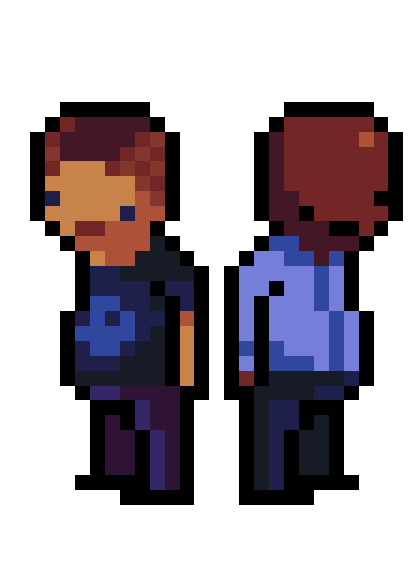
5.1 Download the Official Template
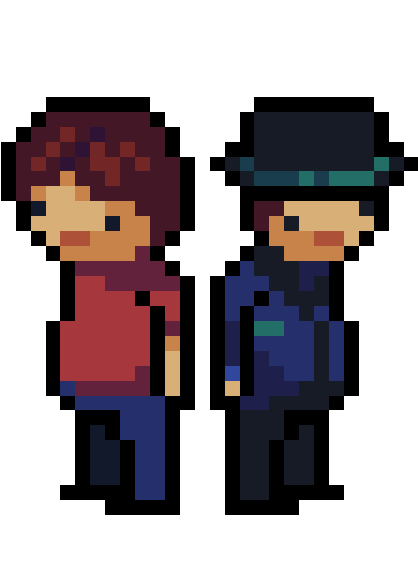
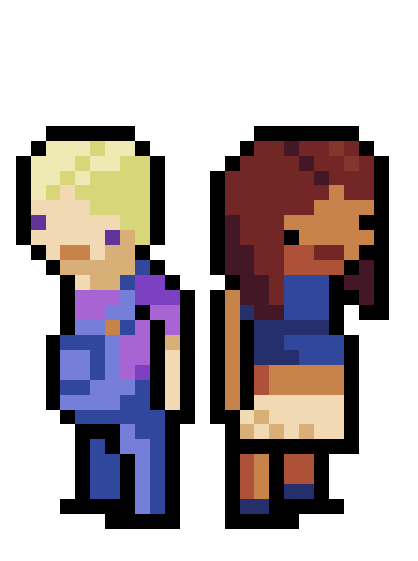
Download the official skin template.
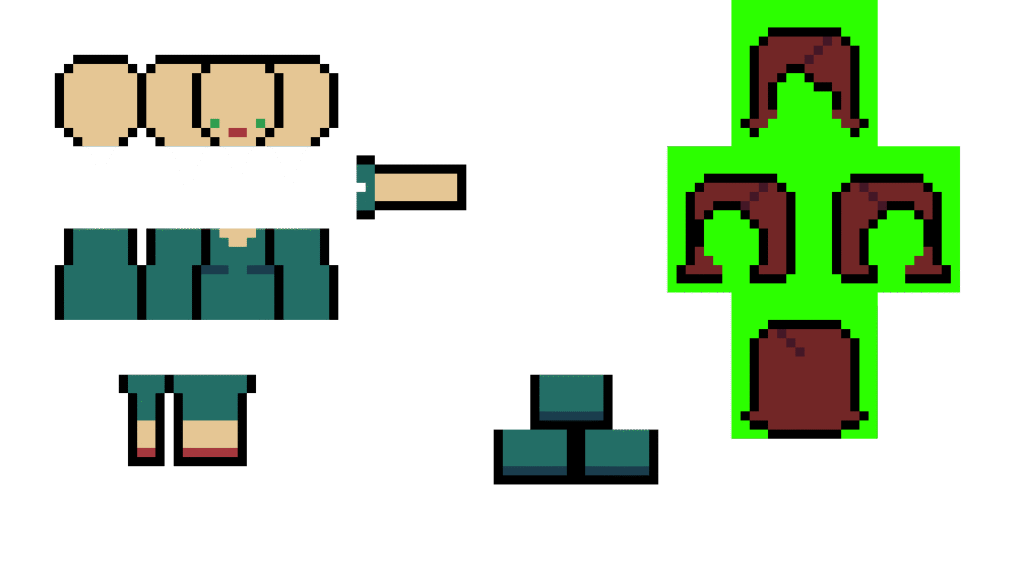
Use this template as the layout reference for your character spritesheet. It includes a base character and areas for additional parts such as hair, hats, skirts and accessories, with examples showing how they work together.
Keep the layout and the exact 112 × 64 pixel canvas size. Draw within the template’s designated areas so the game’s animations can use your artwork correctly.
sample_skin_addon
5.2 Empty Areas and Colour Markers
Empty areas in the skin template must use the exact colour #2cff00. A different colour will be treated as visible artwork instead of the intended empty area.
You can optionally use the game’s automatic colour system. Replace the relevant body-part pixels with these exact markers:
| Part | Colour marker |
|---|---|
| Skin | #ef00ff |
| Eyes | #000dff |
| Mouth | #00e2ff |
| Hair | #ff0000 |
| Hair highlights | #ff3d3d |
| Hair shadows | #bd0000 |
The game replaces these markers with its character colours. You can use the system for only selected parts of the artwork and draw the rest with fixed colours. You do not have to use every marker.
5.3 Create the Avatar
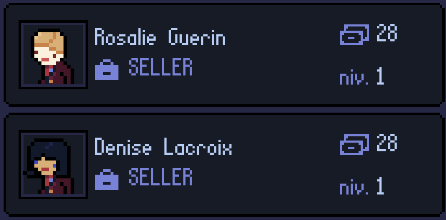
Create a separate 16 × 16 pixel avatar for the skin. This portrait represents the character in interfaces such as employee recruitment.
If the spritesheet uses automatic colour markers, use the same markers for the corresponding parts of the avatar. This keeps the portrait consistent with the character’s generated appearance.
Both the avatar and spritesheet are required, and each file must be under 2 MB.
5.4 Import and Configure the Skin
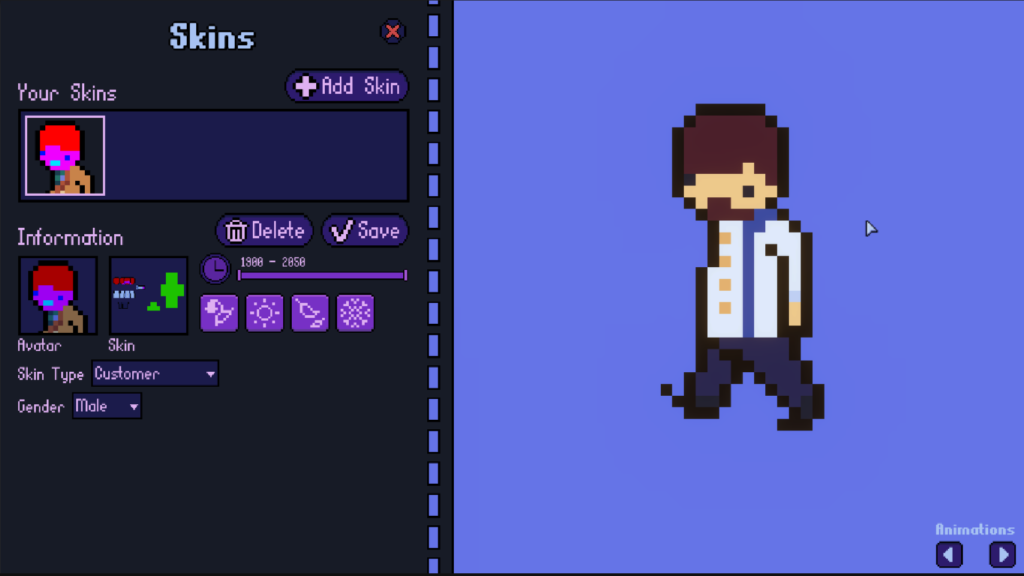
Create or open your mod, enter the Skins category and add a skin. Import the avatar and spritesheet, then choose the skin type, gender, availability years and seasons.
Use the preview’s animation controls to inspect the character. Check that body parts and accessories remain correctly aligned as the animation changes.
5.5 Skin Types
| Type | Use |
|---|---|
| Client | Customer appearances. |
| Employee | Employee appearances. |
| Event | Appearances for specific event roles. |
| Manager | Manager appearances. |
For an Event skin, also choose its role:
| Event role | Character |
|---|---|
| Star | Celebrity |
| Security | Security staff |
| Press | Press representative |
| Firefighter | Firefighter |
| Police | Police officer |
| Bar | Bar staff |
| Army | Military character |
| Delivery | Delivery character |
| Musician | Musician |
5.6 Years and Seasons
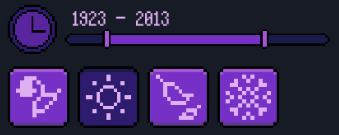
The default availability range is 1900–2050. Set the starting and ending years to match the period in which the skin should be eligible to appear.
Select the desired seasons in this order: spring, summer, autumn and winter. You may enable several seasons. If you deselect the last remaining season, the editor selects all four again.
For customers, eligibility is determined when the character appears. These settings do not change the clothing of an existing customer when the year or season changes.
5.7 Save and Test the Skin
Save the skin and resolve any validation errors. Enable the mod and load or reload your cinema from the main menu. Test it under the relevant conditions, including its character category, availability years and selected seasons.
A skin that is loaded correctly is not guaranteed to be chosen for every new character. The game handles character selection through its normal systems.
Creating Films
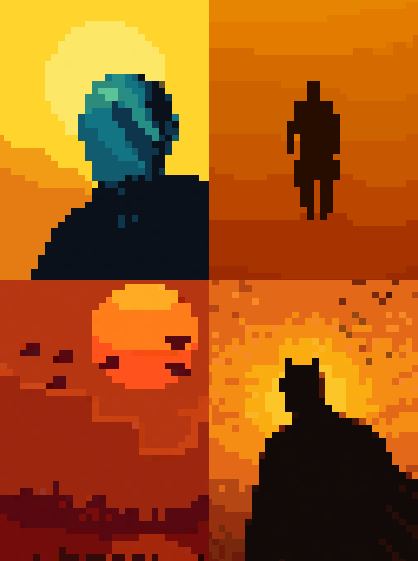
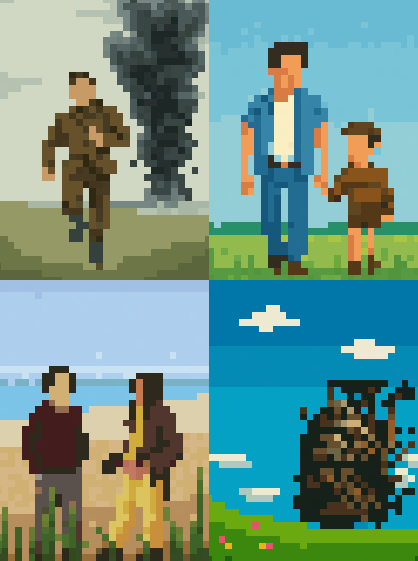
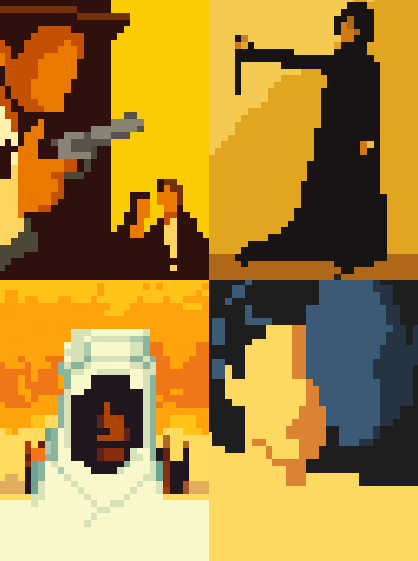
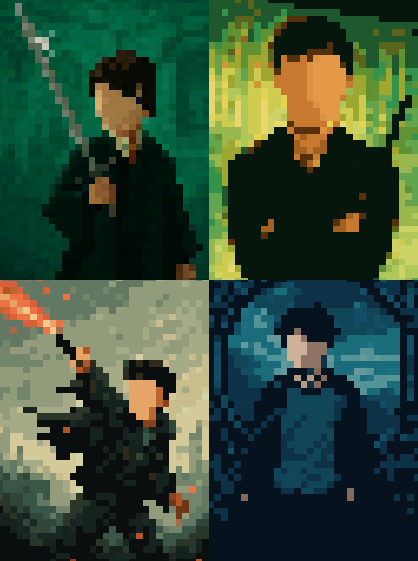
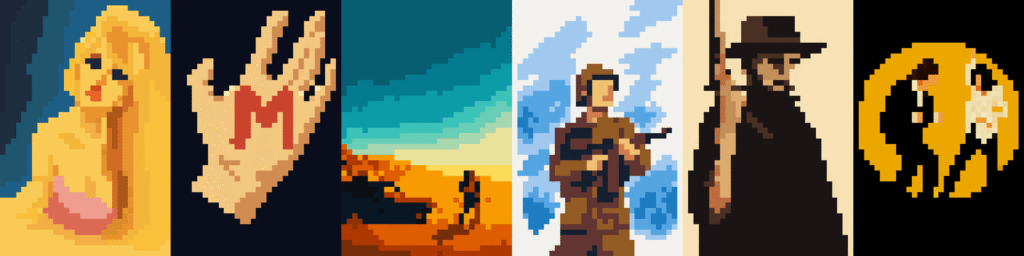
Films are fully integrated into the game’s research and secondary market systems. A good film mod combines a readable poster with solid metadata (duration, rating, genre, etc.).
6.1 Add a Film
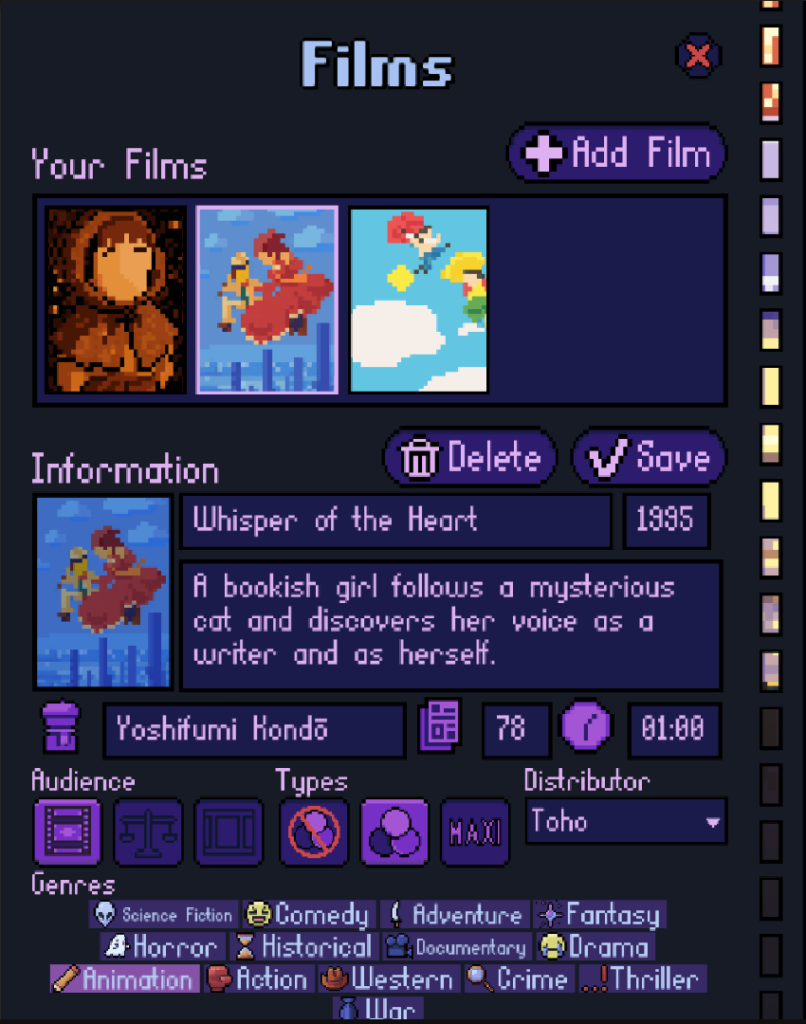
Create or open your mod, enter the Films category and add a film. Import its poster and fill in the film information, then save it and review the validation panel.
6.2 Poster and Required Information
The poster must measure exactly 32 × 48 pixels and weigh under 2 MB. Use clear shapes and readable artwork at this small resolution.
| Setting | Purpose |
|---|---|
| Title | The film’s name. Required. |
| Director | The credited director. Required. |
| Description | A synopsis or description. Required. |
| Release year | The year from which the film becomes available. Enter a whole number between 1 and 9999. |
| Duration | The running time, entered as hours and minutes. |
| Press rating | A whole-number score from 0 to 100. |
| Audience | The film’s audience category. |
| Format | Black and white or colour, with an optional IMAX edition. |
| Genres | At least one selected genre. |
| Distributor | An existing distributor representing the film’s origin. |
6.3 Duration
Enter the duration in hours:minutes, such as 01:30 for one hour and thirty minutes. The duration must be greater than 00:00.
The game uses half-hour steps. A duration that falls between steps is rounded up to the next half-hour.
| Entered duration | Duration used in the game |
|---|---|
00:10 | 00:30 |
01:00 | 01:00 |
01:30 | 01:30 |
02:10 | 02:30 |
Enter hours and minutes directly; you do not need to convert the duration into decimal hours.
6.4 Press Rating and Audience
The press rating is a score from 0 to 100. Choose the value that represents your film’s critical reception.
Select one of the three audience categories: Independent, Mainstream or All audiences. Use the in-game audience information to choose the category that fits your film.
6.5 Colour and IMAX
Choose either Black and white or Colour. These are mutually exclusive: each film must use one of them.
You can also enable IMAX. This adds an IMAX version among the film’s purchase options. It does not replace the required black-and-white or colour choice.
The game automatically determines the applicable physical, digital and IMAX support options through its existing systems.
6.6 Genres and Distributor
Select at least one genre. You can select several when they apply to the film.
Available genres include science fiction, comedy, adventure, fantasy, horror, historical, documentary, drama, animation, action, western, crime, thriller and war.
Choose the existing distributor that best represents where the film comes from. If its exact distributor is not available, choose an existing distributor from the appropriate continent.
This choice determines the film’s origin within the game’s world and where players can research it.
6.7 Find Your Film in the Game
Save the film, correct any validation errors and enable the mod. Load or reload your cinema from the main menu.
The film becomes available from its release year and can be found through the game’s main research system. Players can buy or rent it using the usual game systems, then programme it in their cinema.
If it does not appear, check its validation messages, release year, selected distributor and the region in which you are searching. Also check that the mod is enabled and that you have reloaded the game from the main menu since making changes.
Install, Share and Update Mods
Install and Share Mods
Open Mods → Local Folder from the main menu. Copy the extracted mod folder directly into Mods, then press Refresh and enable it.
To share your own mod, save all changes and send its complete folder, optionally as a ZIP. Mods are not synchronised through cloud saves, so keep your own backups.
On Steam, subscribe through the Workshop, wait for the download, then refresh and enable the mod. Creators can publish and update their mods directly from the editor.
Always load or reload your cinema from the main menu after changing mods.
Existing Saves
Mods can be added to existing saves and do not disable achievements. If a modded object or film becomes unavailable, it is automatically removed from the loaded game. Back up your save before removing mods.
Ready to Build Your First Mod?
Open the Modding Tools, download the templates and start creating your own items, films and skins today.